
This article describes how to view your account's disk usage by using cPanel.
Viewing disk usage information
cPanel's disk usage page enables you to see how much disk space your account's directories and databases are occupying. You can view the information in bar graph format, and you can also sort directories by name and disk space usage.
To view information about your account's disk usage, follow these steps:
- Log in to cPanel.
- Open the Disk Usage tool:
- If you are using the Jupiter theme, on the Tools page, in the Files section, click Disk Usage:

-
If you are using the Paper Lantern theme, in the FILES section of the cPanel home page, click Disk Usage:

- If you are using the Jupiter theme, on the Tools page, in the Files section, click Disk Usage:
-
Bar graphs appear that show relative disk usage by directory:
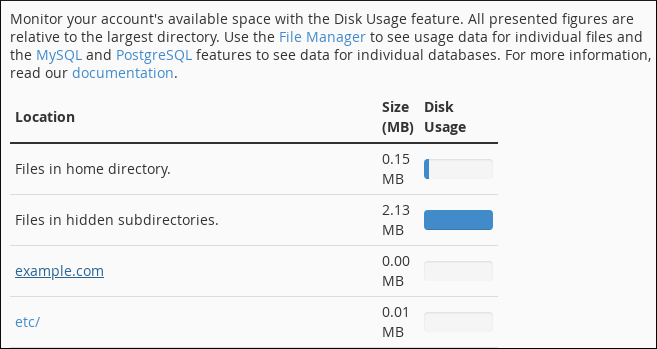 If there are a lot of files and directories in your account, it may take a few minutes for cPanel to calculate all of the disk usage information.
 -
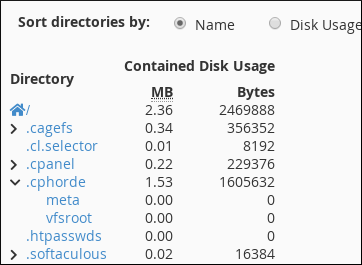
Beneath the bar graphs, you can view disk usage by directory, in both megabytes (MB) and bytes (there are 1048576 bytes in 1 megabyte):
-
You can sort disk usage information in two ways:
- To sort by directory name, click Name.
- To sort by size, click Disk Usage.
Sorting by size is an excellent way to quickly determine which of your directories are taking up the most disk space.
-
You can also navigate through the directory hierarchy to view disk usage information for subdirectories:
- To view a subdirectory, click the > icon next to the parent directory's name.
